Score Overlay Setup
Getting a live score overlay on your stream
This walks through setting up a live score overlay on your stream. There's nothing to install -- you paste a URL into your streaming software and open the control panel on your phone.
Before you start
- A ScoreLM account on the Pro plan (score overlays are a Pro feature)
- Streaming software that supports web-based overlays -- most popular streaming apps do
- At least one game created in your league schedule
- A phone, tablet, or second device for the control panel
Create a score overlay in the admin panel
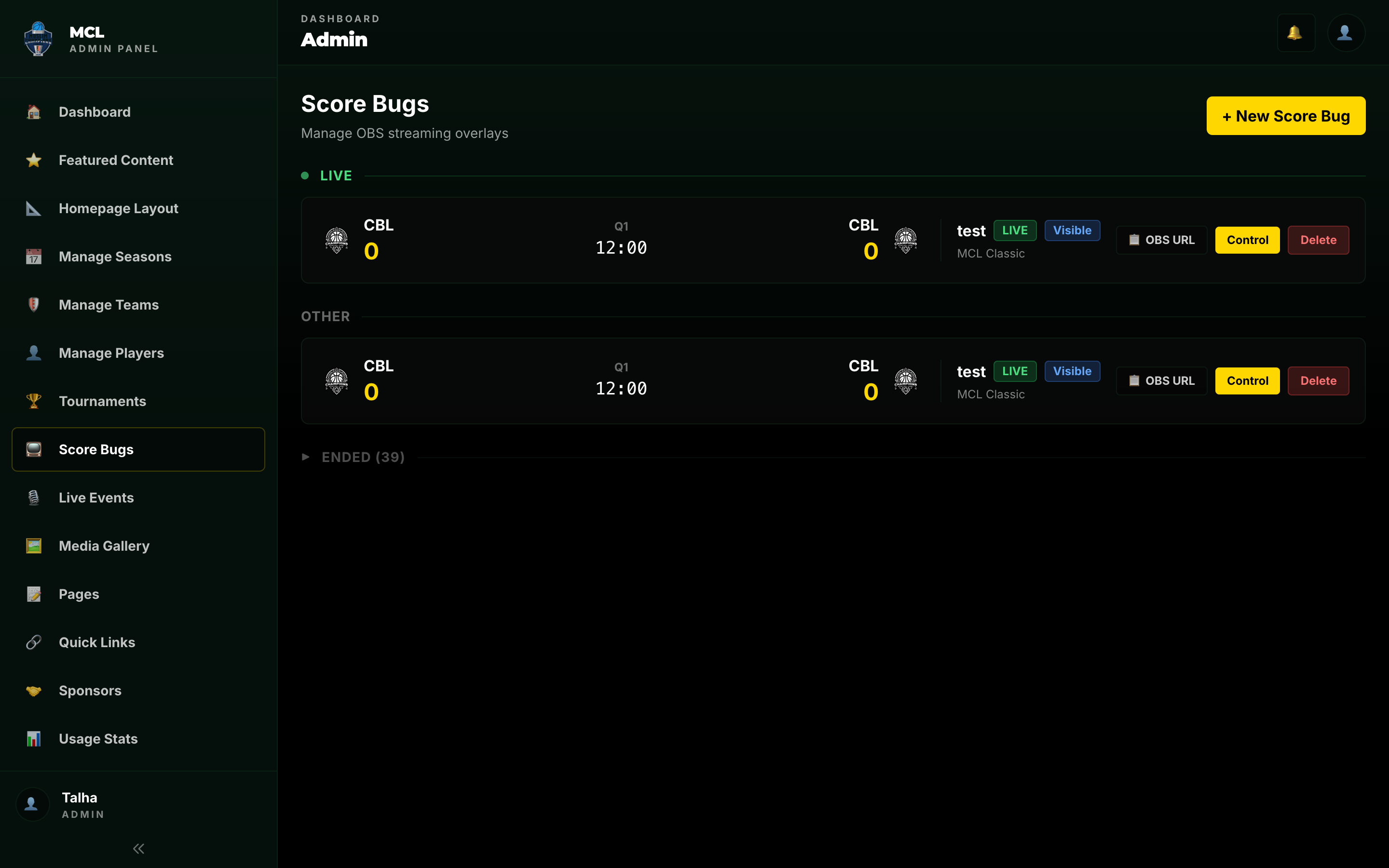
Go to the Score Overlays section in the admin dashboard. Pick a template -- each one looks different but they all support live scores, player highlights, and sponsor pop-ups. Choose the one that fits your league's style.
Copy the overlay URL
After picking a template, you'll see a unique overlay URL that already has your league's colors and logos baked in. Copy it. There's also a separate control panel URL -- grab that too.
Add the overlay to your stream
In your streaming software, add a new web-based overlay (sometimes called a browser source) to your scene. Paste the overlay URL, set it to 1920x1080, and make sure the source stays connected when you switch scenes (most apps have a setting like 'Shutdown source when not visible' -- leave it OFF). Position it where you want on screen.
Link to a live game
In the admin panel, go to the game you want to broadcast and click 'Link Overlay'. Pick the overlay you just created. It pulls in the right team names, logos, and colors for that matchup. Between games, you can switch to a different matchup without touching your streaming software.
Go live and take control
Open the control panel URL on your phone, tablet, or another laptop. You'll see buttons for scores, clock, player highlights, and sponsor pop-ups. When you tap to update a score, the overlay on stream changes almost instantly.
Pro Tips
Tips from running live broadcasts
Things we learned the hard way so you don't have to.
Use 1920x1080 for the overlay
The score overlays are designed for 1080p. Using a different resolution may cause scaling issues or blurry text. If your stream is 720p, still use 1080 for the overlay and let your streaming software handle the downscale.
Keep your control device on a stable connection
A stable internet connection on your control device keeps updates near-instant. If you're in a gym with spotty WiFi, use your phone's cellular data instead.
Assign a dedicated overlay operator
One person can handle the whole broadcast, but it's easier if someone else runs the overlay while the camera person focuses on the game. The control panel works fine on a phone held courtside.
Test before game day
Run through the setup once before your first live broadcast. Create a test game, link the overlay, and make sure it appears correctly on stream. It takes five minutes and saves you from troubleshooting during tip-off.
Keep the overlay connected when switching scenes
In your streaming software, make sure the overlay doesn't get torn down when you cut to a different scene (the setting is usually labeled something like 'Shutdown source when not visible' -- leave it OFF). If it disconnects every time you switch, there's a brief delay before the score reappears when you cut back.
Use sponsor pop-ups during timeouts
Timeouts are dead air on a stream. Trigger sponsor pop-ups during them so sponsors actually get screen time. It's a concrete thing you can show them when asking for sponsorship money.
How the live connection works
When you tap a button on the control panel, the overlay on your stream updates almost instantly.
That's the whole setup
It takes about five minutes the first time. After that, linking a score overlay to a new game is a couple clicks.